

Execution
The platform allows you to execute quantum programs on quantum hardware or simulators of your choice.Usage
The input for the execution is a Classiq quantum program, which is the result of synthesizing a quantum model (see Quantum Program Synthesis). When designing your model, do not forget to include execution primitives such assample.
- IDE
- SDK
When viewing a quantum program in the “Quantum Program” page, after synthesizing your model or uploading your quantum program file, click “Execute”: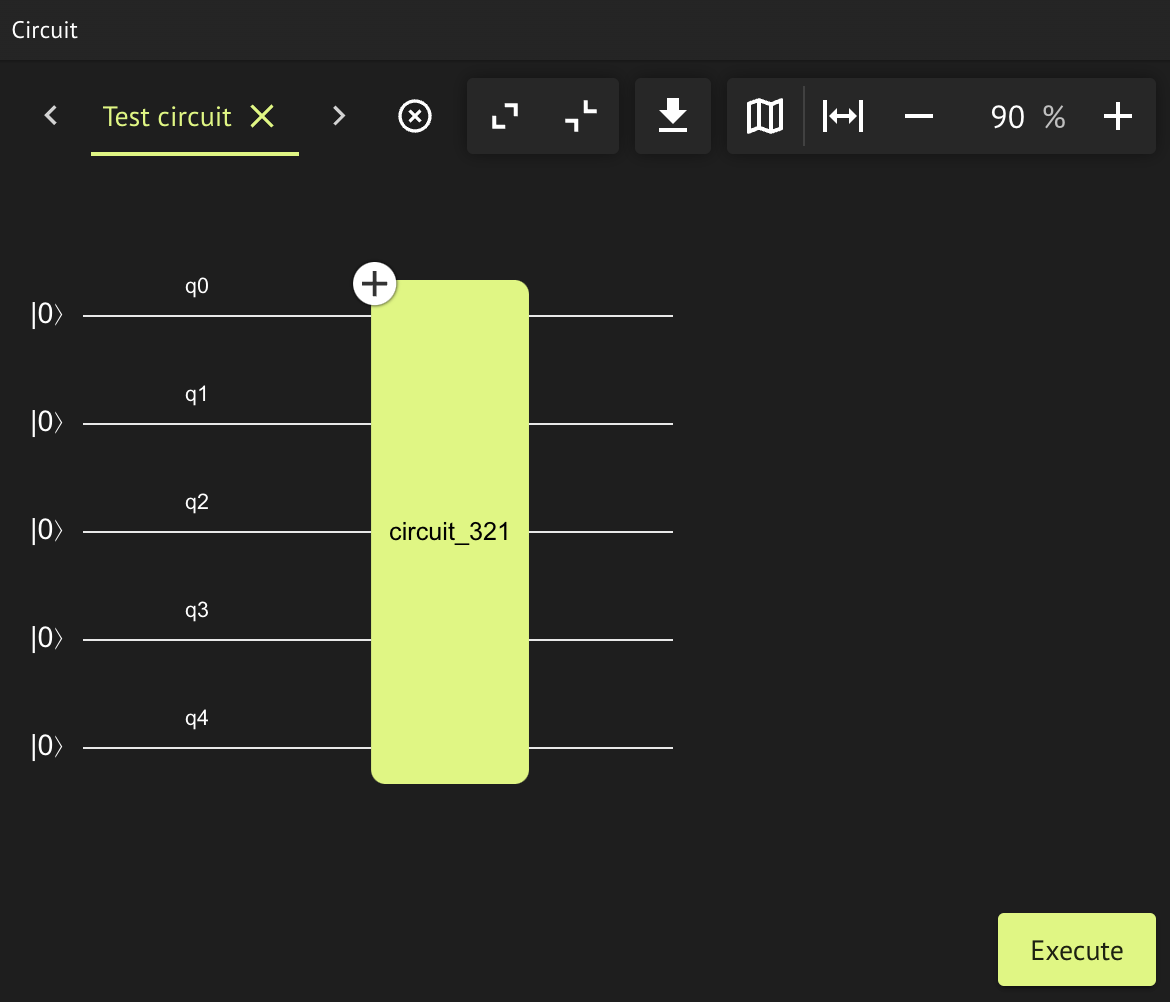
Execution Preferences
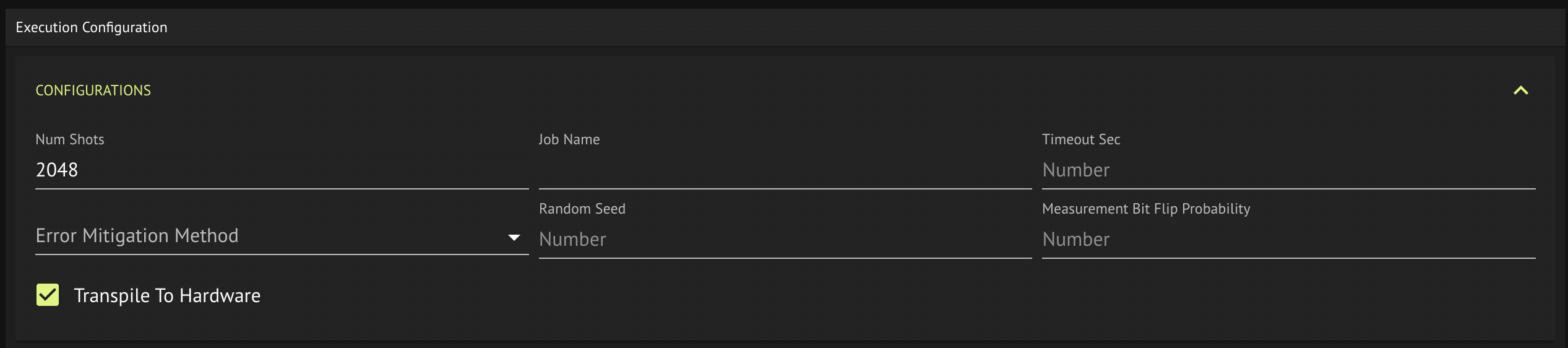
You can configure the execution process by modifying the execution preferences. The main execution preferences:- Backend preferences, such as provider, backend name, and credentials. See Cloud Providers.
- Number of shots to use.
- Job name to use.
- Transpilation options. You can set the transpilation level (and whether or not to transpile) in the Classiq executor
by setting the
transpile_to_hardwarefield (shown as the “Transpilation Option” field in the IDE execution page). For more information on the transpilation levels, see quantum program transpilation.
- IDE
- SDK
Choose your backend preferences in the “Execute Quantum Circuit” window: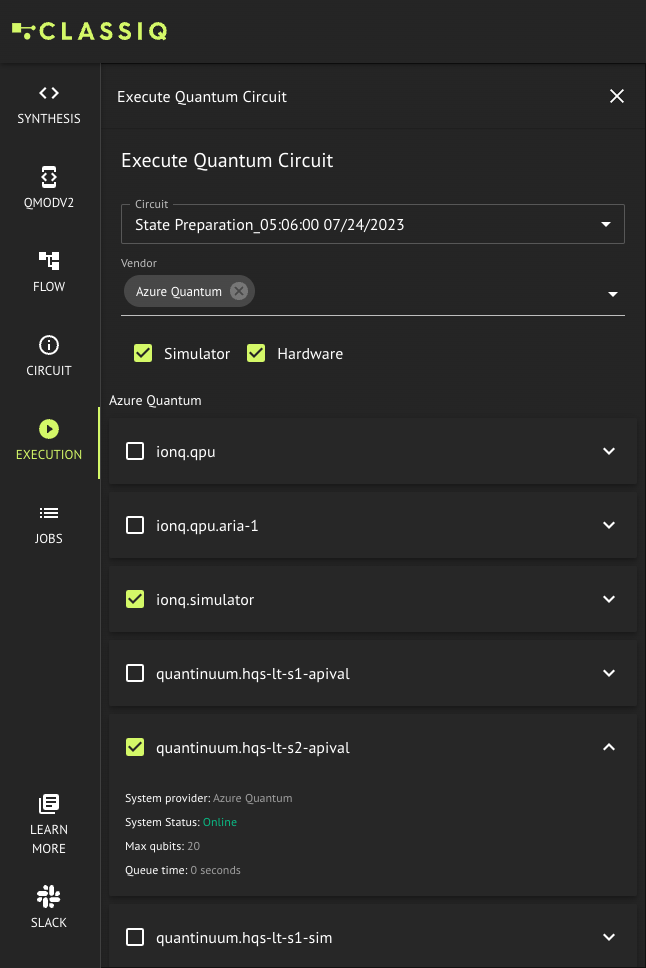
Jobs
You can view all your execution jobs from any device in the IDE and the SDK, regardless of whether they were originally sent via the IDE or the SDK.- IDE
- SDK
The IDE automatically shows all your execution jobs in the “Jobs” tab.
You can choose any execution job to view its results, rename it, or delete it
from the list.
Results
- IDE
- SDK
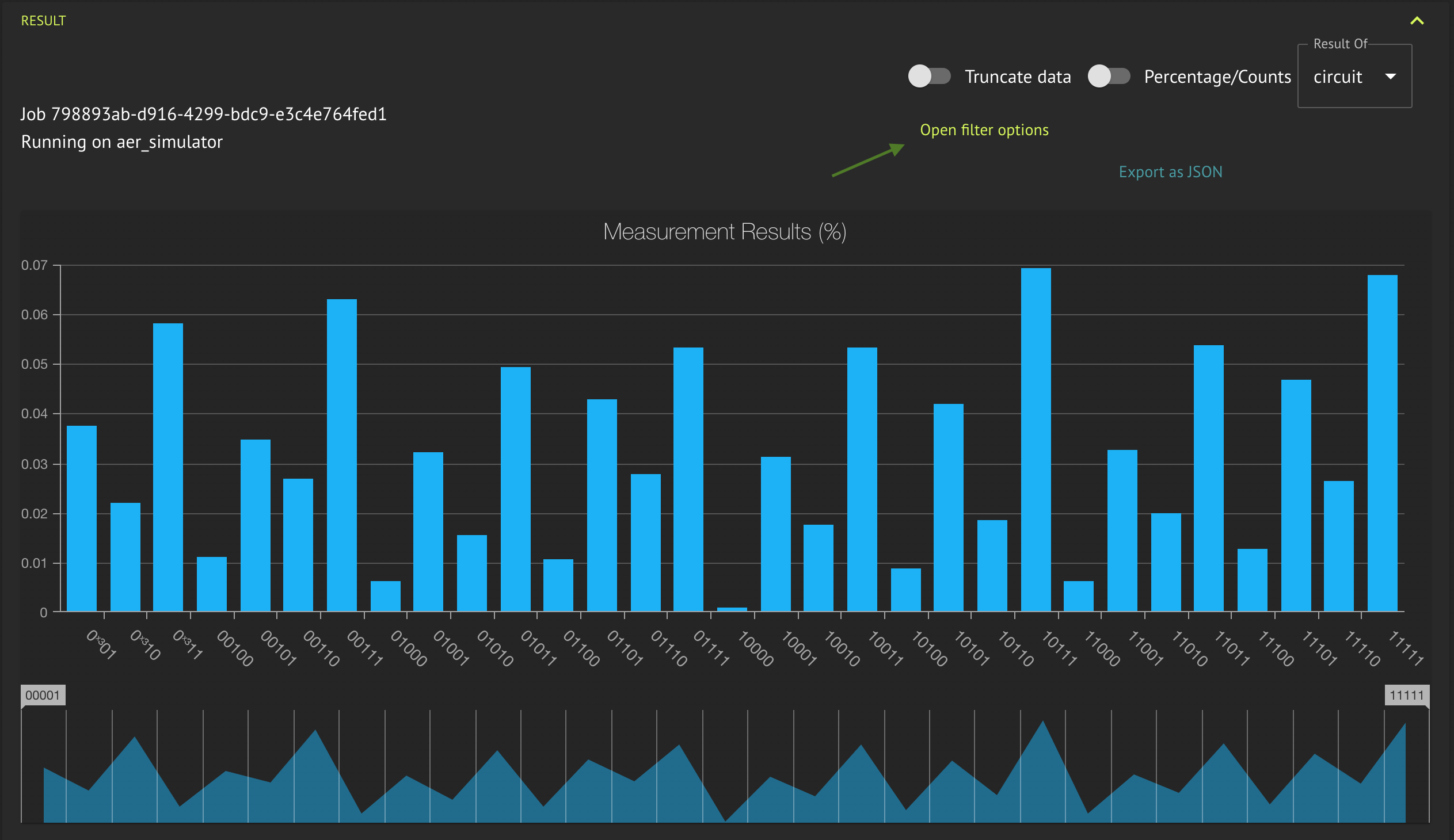
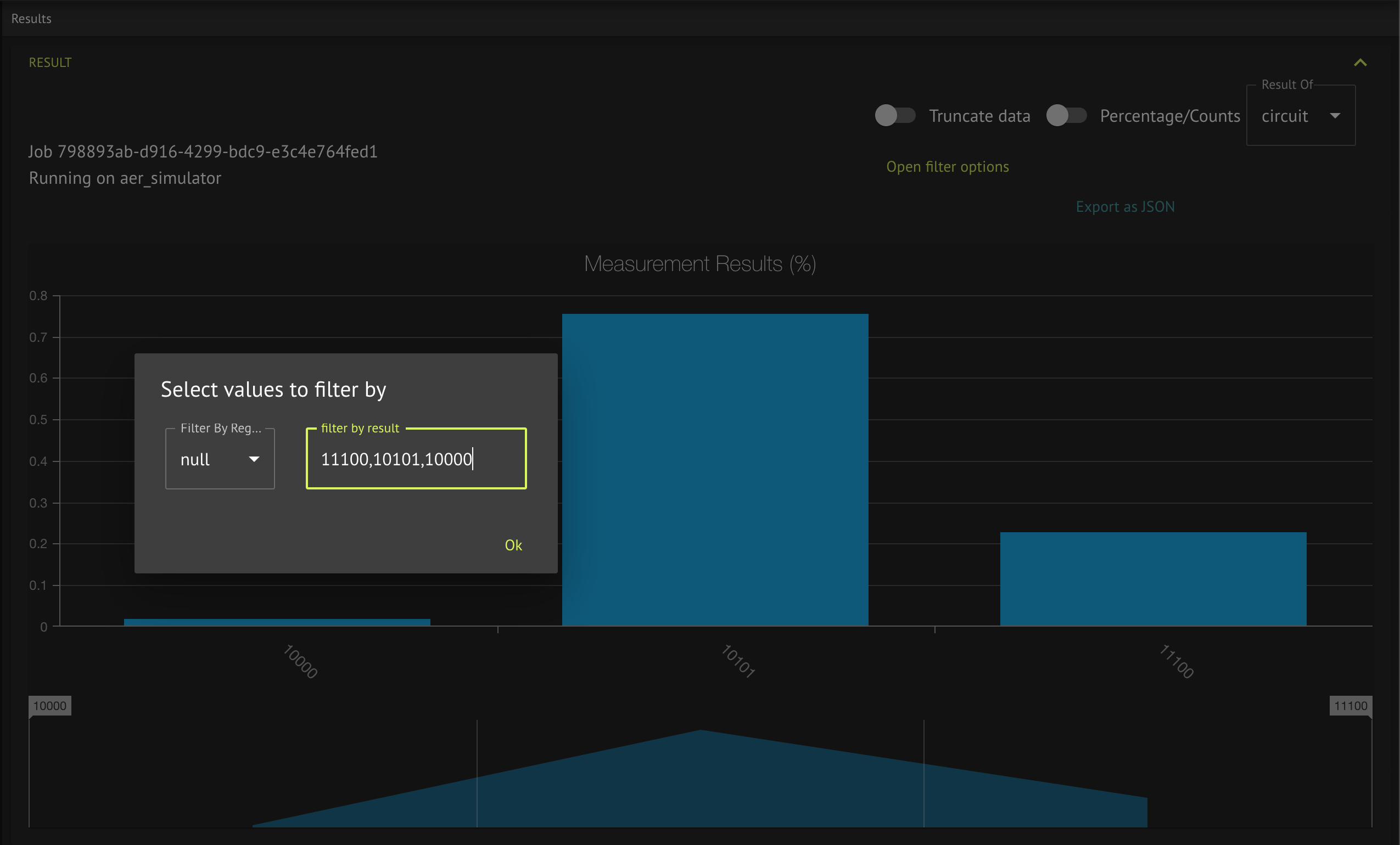
The IDE shows a visualized view of each result returned from execution.The most common result type is the measurements of your quantum program: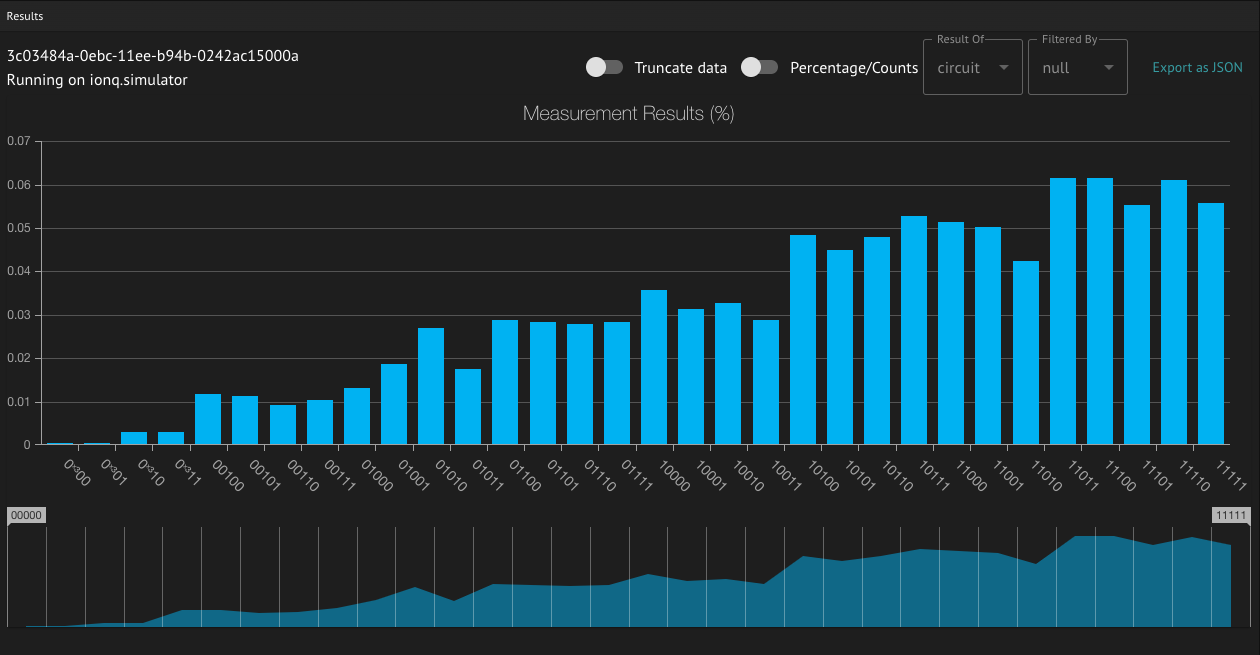
Cancellation
You can cancel your execution job from both the IDE (by clicking “Cancel” in the job view) and SDK (by using thejob.cancel method).
Cancelling an execution job will abort the execution process and try to cancel any ongoing jobs sent to the provider during this execution.
Thus, cancelling a job might not be immediate, and you may continue polling the job to ensure its cancellation. This is the default behavior in the IDE, and in the SDK you can use the job.poll method.